> ## Documentation Index
> Fetch the complete documentation index at: https://docs.metamcp.com/llms.txt
> Use this file to discover all available pages before exploring further.
# Open WebUI Integration
> Use MetaMCP to manage tools for Open WebUI
## Prerequisites
Before starting, ensure you have:
* Docker and Docker Compose installed
* Open WebUI running (locally or deployed)
* MetaMCP deployed with a properly configured `APP_URL` (default to `http://localhost:12008`)
## Step 1: Deploy MetaMCP with Proper Configuration
If you haven't already, clone MetaMCP and set it up:
```bash theme={null}
git clone https://github.com/metatool-ai/metamcp.git
cd metamcp
cp example.env .env
```
**Critical**: Configure your `APP_URL` properly in the `.env` file for Open WebUI integration:
```bash theme={null}
# For local Open WebUI accessing local MetaMCP
APP_URL=http://localhost:12008
# For deployed Open WebUI accessing deployed MetaMCP
APP_URL=https://your-metamcp-domain.com
# For local Open WebUI accessing deployed MetaMCP
APP_URL=https://your-metamcp-domain.com
```
Open WebUI must be able to reach your MetaMCP instance at the configured `APP_URL`. Ensure firewall rules and network configuration allow this access.
Also configure other production settings:
```bash theme={null}
POSTGRES_PASSWORD=your_secure_password
BETTER_AUTH_SECRET=your_auth_secret # Generate with: openssl rand -hex 32 | base64
```
Launch MetaMCP using Docker Compose:
```bash theme={null}
docker compose up -d
```
Verify it's running by visiting your configured `APP_URL`.
## Step 2: Configure MetaMCP for Open WebUI
1. Open your browser and go to your `APP_URL` (e.g., `http://localhost:12008`)
2. **Create an account** or log in
3. **(Recommended)** Disable new user registration in **Settings** for security
Add the MCP servers you want to expose to Open WebUI:
1. Navigate to **MCP Servers** in the sidebar
2. Click **"Add Server"** button
3. Configure your server (example with filesystem server):
**Basic Information:**
* **Name**: `hacker-news-server`
* **Description**: `Hacker News integration for fetching stories and comments`
* **Type**: `STDIO`
**Server Configuration:**
* **Command**: `uvx`
* **Arguments**: `mcp-hn`
* **Environment Variables**: (if needed)
**Ownership:**
* Choose **"Everyone (Public)"** for Open WebUI access
4. Click **"Create Server"**
Repeat this process for all MCP servers you want to make available to Open WebUI.
Group your MCP servers into a namespace for Open WebUI:
1. Go to **Namespaces** in the sidebar
2. Click **"Create Namespace"**
3. Configure the namespace:
**Basic Information:**
* **Name**: `openwebui-tools`
* **Description**: `Aggregated tools for Open WebUI integration`
**Ownership:**
* Choose **"Everyone (Public)"**
**Select MCP Servers:**
* Check all servers you want to include
* These will be aggregated into one endpoint
4. Click **"Create Namespace"**
Fine-tune which tools are available:
1. Click on your **"openwebui-tools"** namespace
2. Review the **Tools Management** section
3. Disable any tools you don't want Open WebUI to access
4. This helps keep the tool set focused and secure
## Step 3: Create OpenAPI Endpoint
Create an endpoint that Open WebUI can consume:
1. Navigate to **Endpoints** in the sidebar
2. Click **"Create Endpoint"**
3. Configure the endpoint:
**Basic Information:**
* **Name**: `openwebui-api`
* **Description**: `OpenAPI endpoint for Open WebUI integration`
**Ownership:**
* Choose **"Everyone (Public)"**
**Namespace Selection:**
* Select your **"openwebui-tools"** namespace
**API Key Authentication:**
* **Enable API Key Authentication**: Toggle ON
* **Use Query Parameter Authentication**: Toggle OFF (Open WebUI supports Bearer tokens)
**MCP Server Creation:**
* Check **"Automatically create an MCP server for this endpoint"**
4. Click **"Create Endpoint"**
**Your OpenAPI endpoint will be available at:**
* OpenAPI UI: `{APP_URL}/metamcp/openwebui-api/api`
* OpenAPI Schema: `{APP_URL}/metamcp/openwebui-api/api/openapi.json`
## Step 4: Generate API Key
In the last step, if you select **"Automatically create an MCP server for this endpoint"** option, then at least one API key will be automatically generated for you. Feel free to use it instead of creating a new one.
1. Go to **API Keys** in the sidebar
2. Click **"Generate Key"**
3. Configure the API key:
**Key Information:**
* **Description**: `Open WebUI Integration Key`
* **Scope**: **Public** (so Open WebUI can use it)
4. Click **"Generate Key"**
5. **Important**: Copy the generated key (starts with `sk_mt_`)
Save this key securely - it's only shown once and will be needed for Open WebUI configuration.
## Step 5: Configure Open WebUI
Open your Open Web UI page. Find settings.
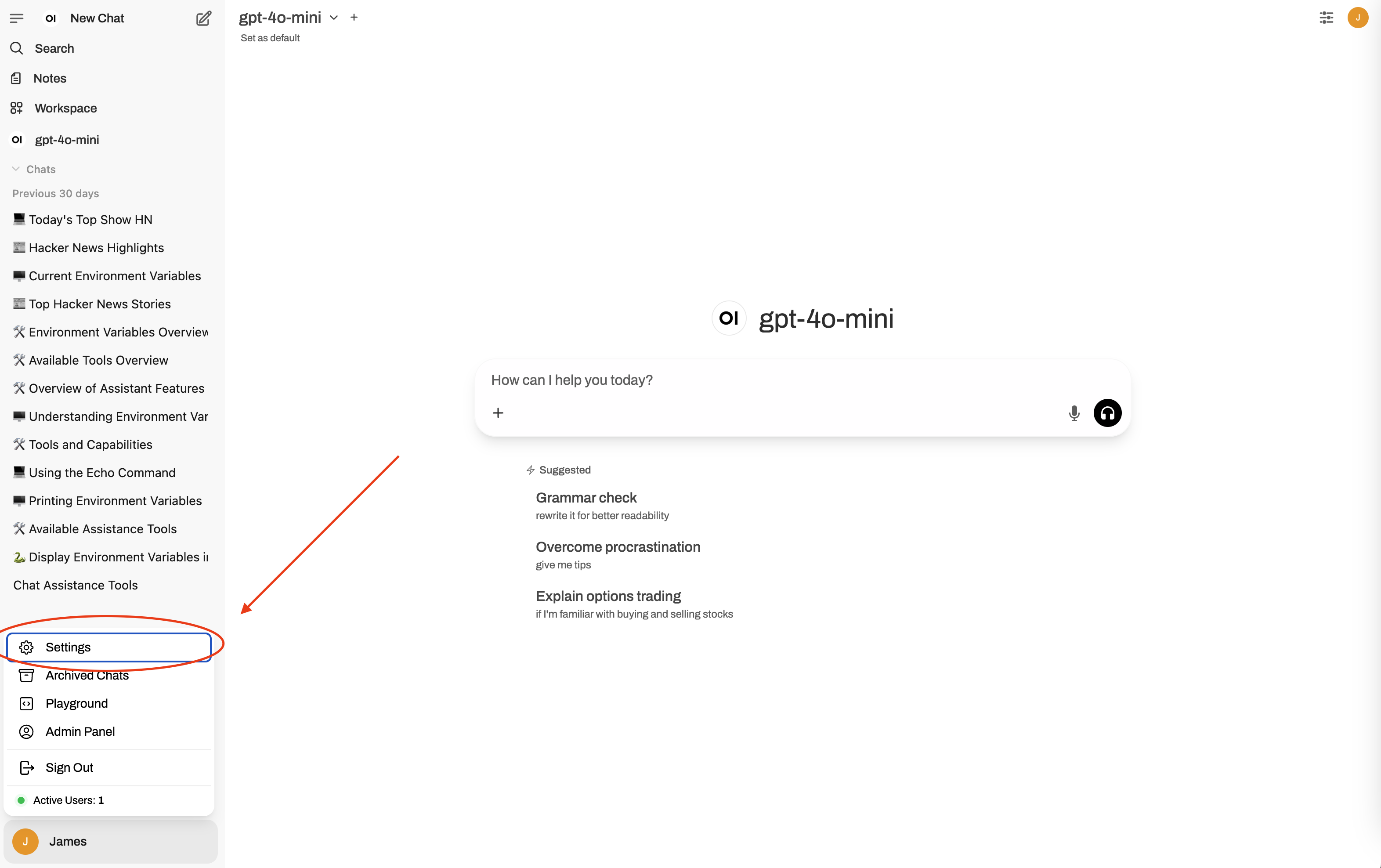 In Settings pop up. Go to "Tools".
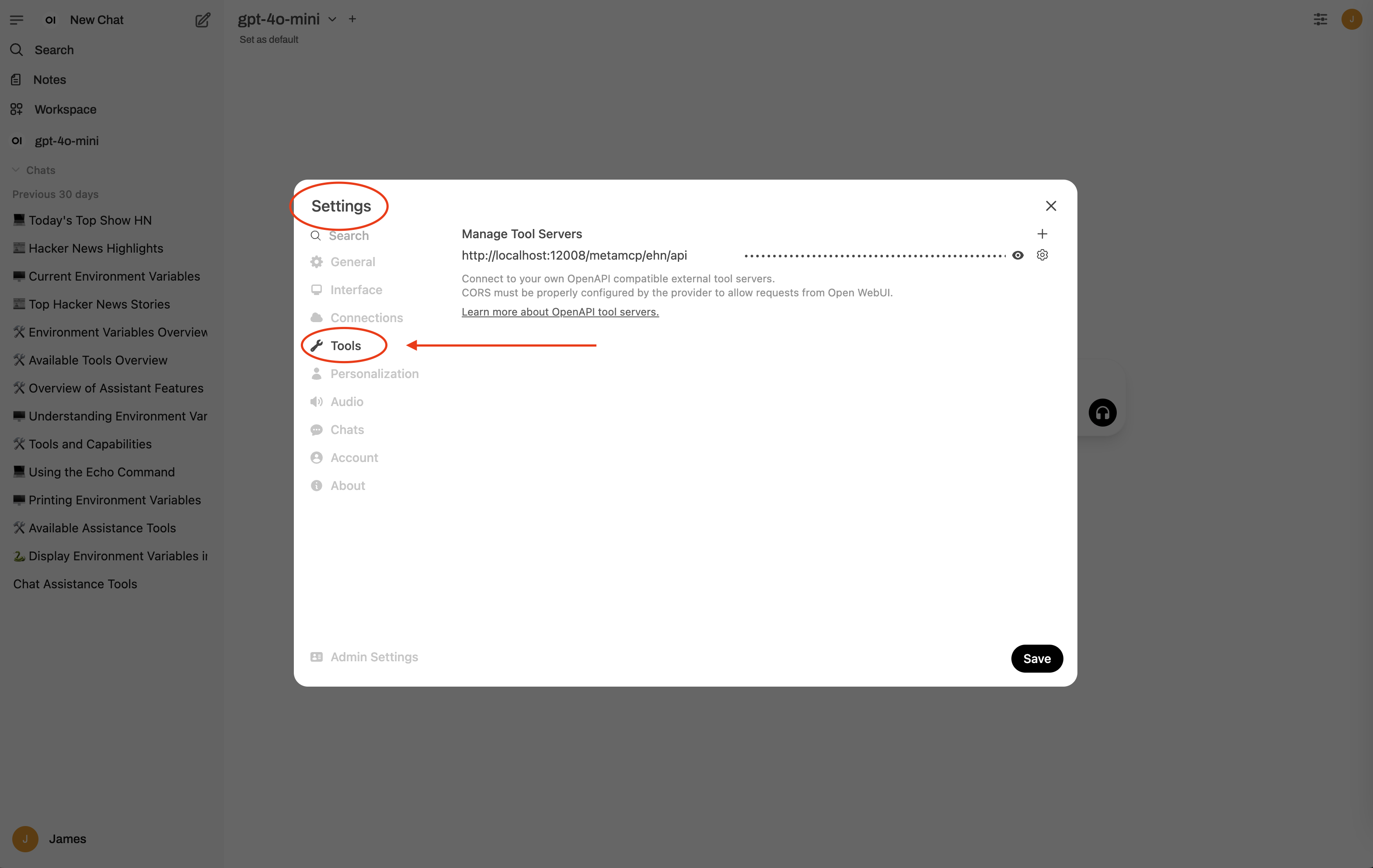 Under **"Manage Tool Servers"** on top right corner click on the **"+"** button to add a connection.
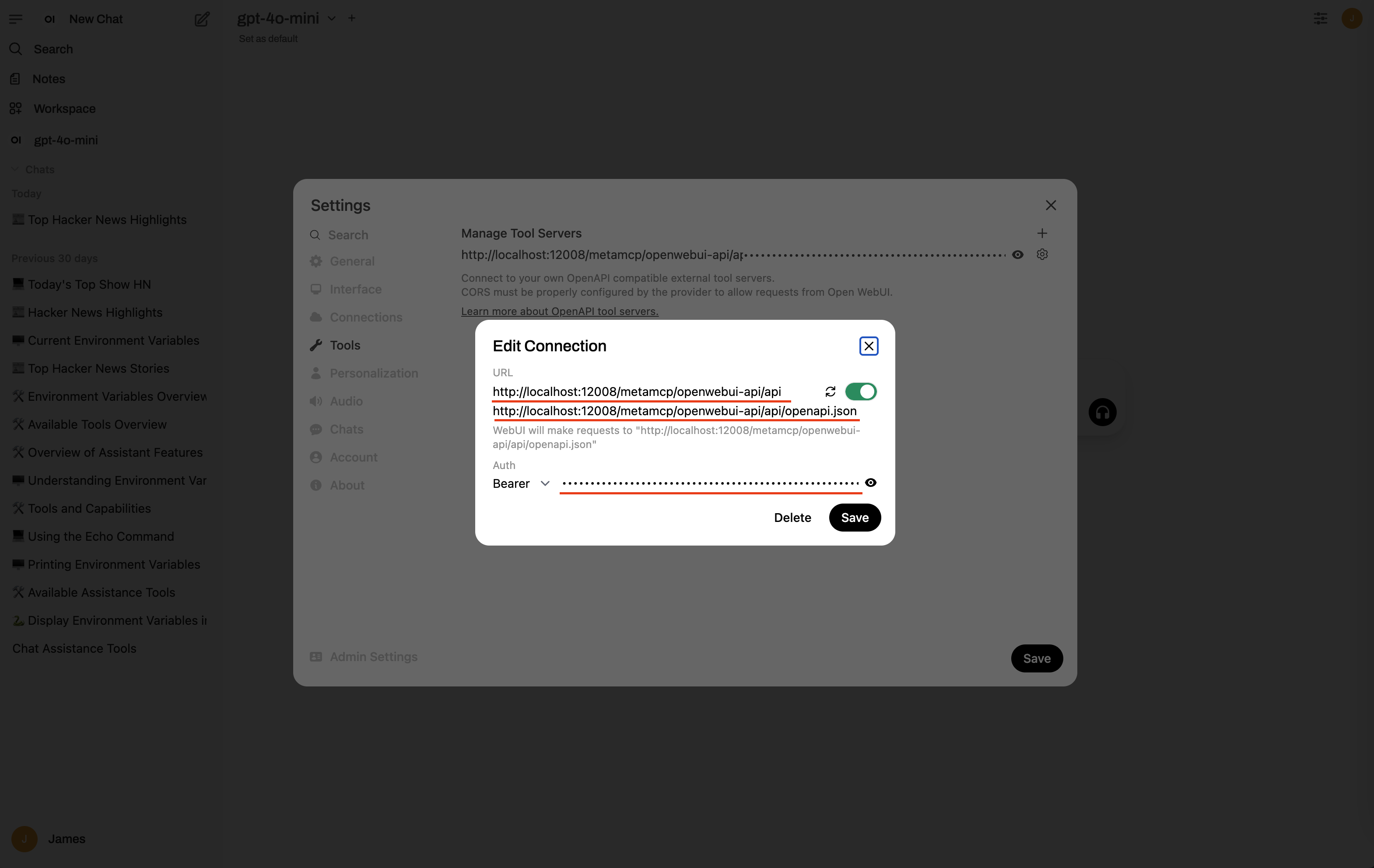
For **URL > Base URL** enter `{APP_URL}/metamcp/openwebui-api/api`. For example if `APP_URL` is `http://localhost:12008` then enter `http://localhost:12008/metamcp/openwebui-api/api`.
For **URL > openapi.json Path** enter `{APP_URL}/metamcp/openwebui-api/api/openapi.json`. For example if `APP_URL` is `http://localhost:12008` then enter `http://localhost:12008/metamcp/openwebui-api/api/openapi.json`.
Put the **"API Key"** generated in previous steps to **"Auth Bearer"** field.
Use the "refresh" button to test connection.
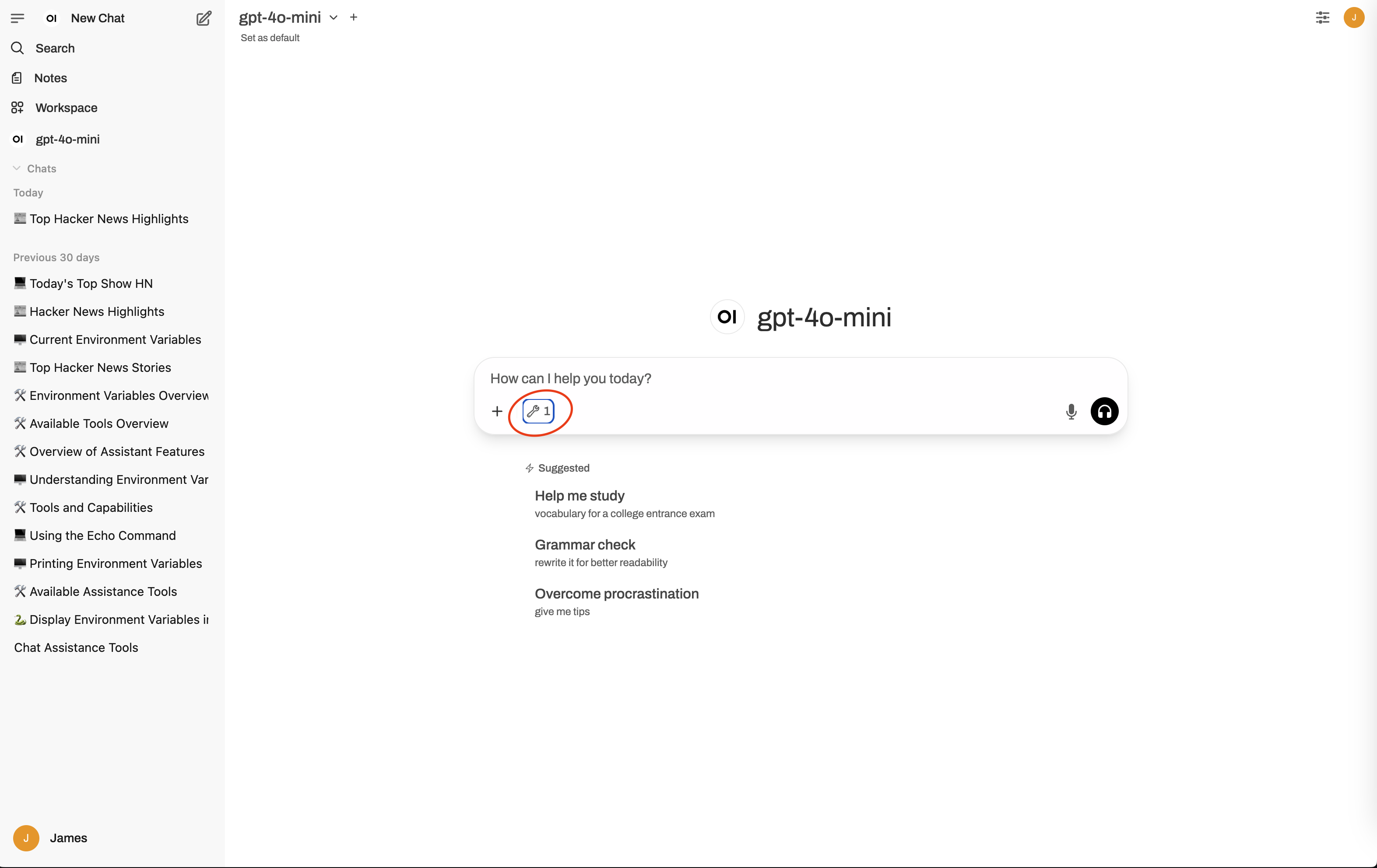
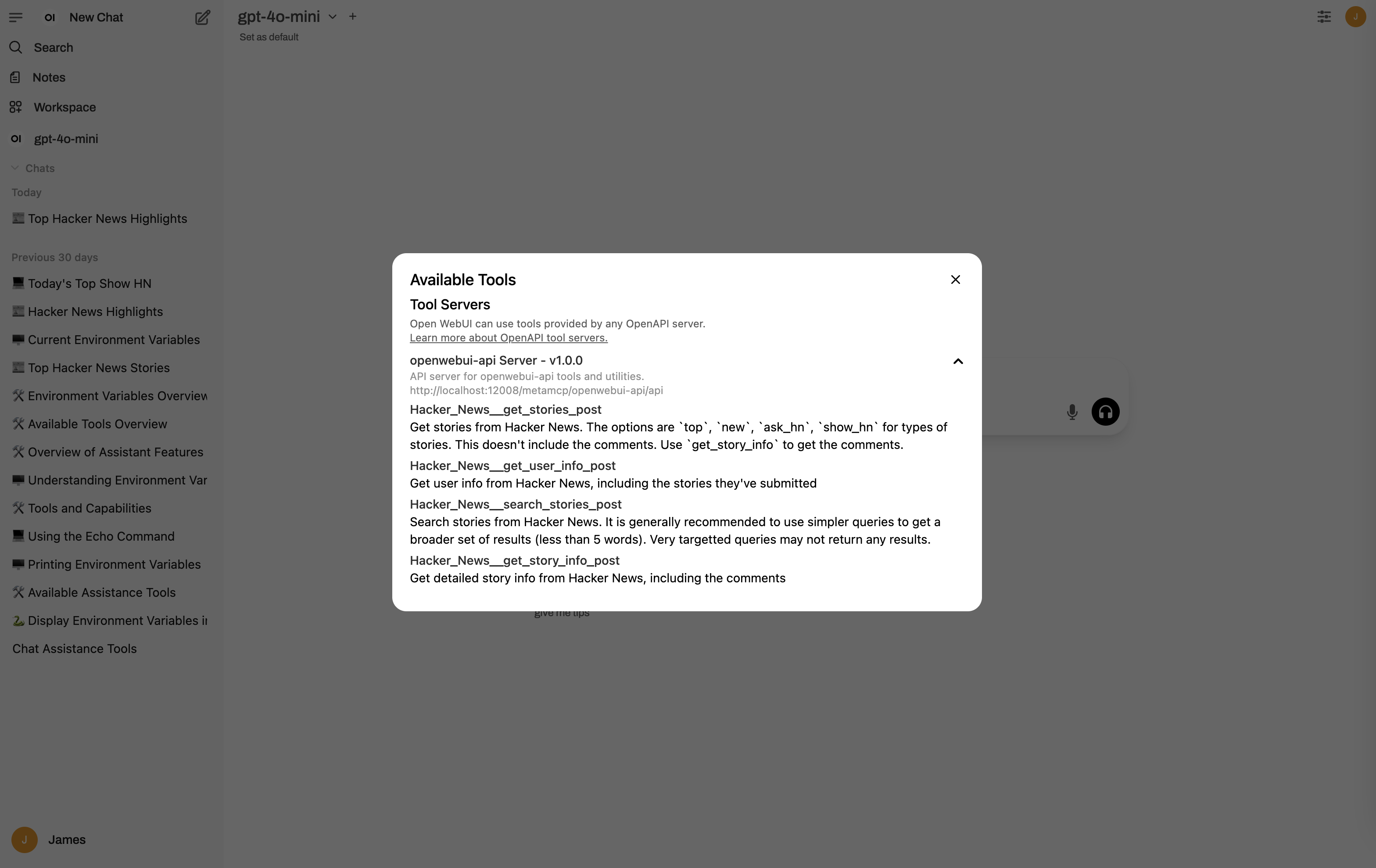
 Close any pop ups. In home page click new chat. Then inspect the available tools.
 In new chat, a query of "show top hacker news" would look like:
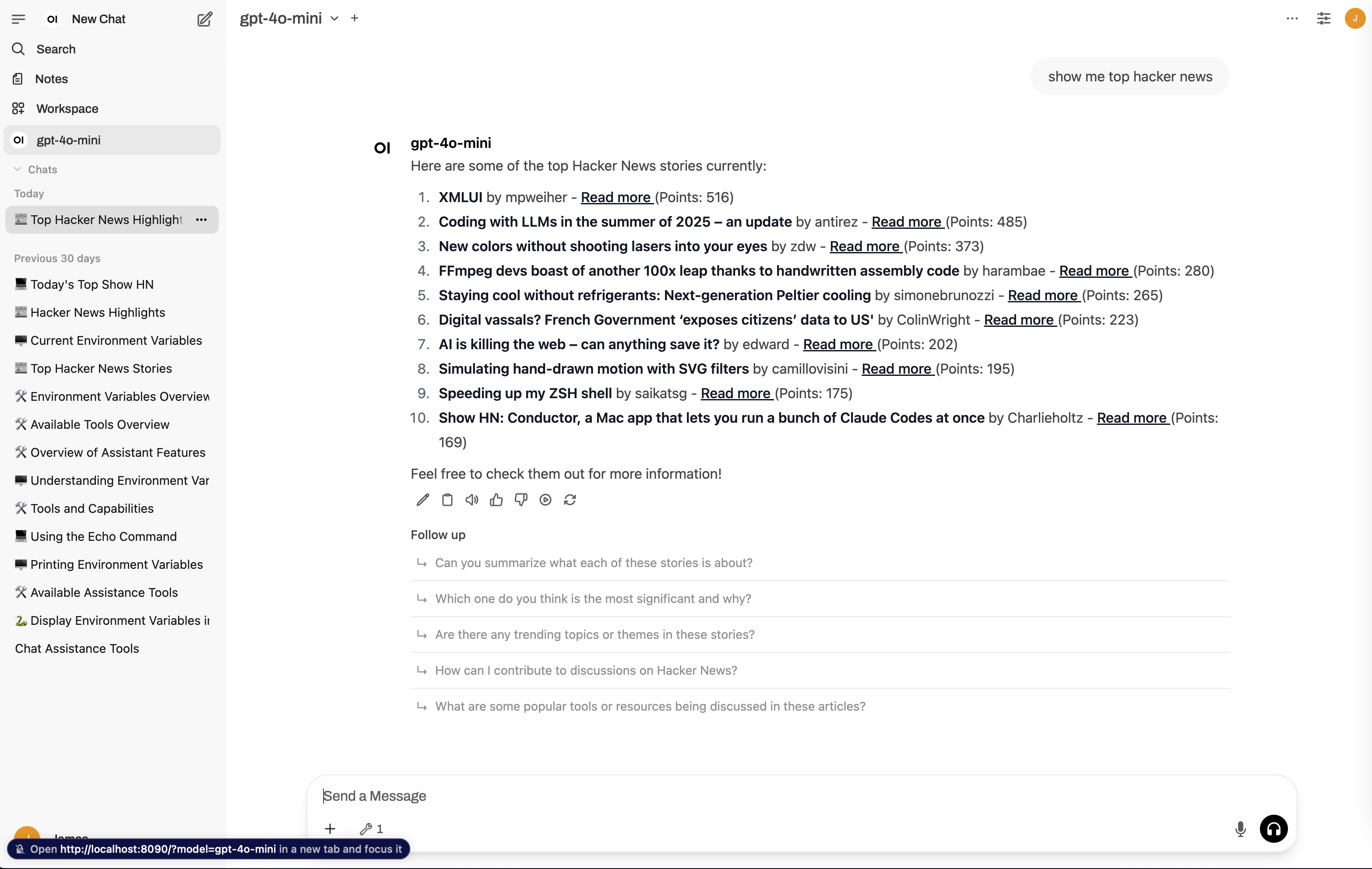 Then in new chats, with a model that supports tool calling, should automatically try to call tools if necessary.
## Troubleshooting
**Connection Errors:**
* Verify `APP_URL` is accessible from Open WebUI
* Check firewall and network configuration
* Ensure API key is correctly configured. Turn off Auth to test if it works first.
* With Auth off, you can manually visit e.g., `http://localhost:12008/metamcp/openwebui-api/api/openapi.json` to verify the `openapi.json`.
**Authentication Issues:**
* Verify API key format (should start with `sk_mt_`)
* Ensure Bearer token authentication is properly configured in Open WebUI
* Verify Authorization header format: `Bearer {your_api_key}`
**Tool Execution Failures:**
* Check MCP server status in MetaMCP dashboard
* Review tool permissions in namespace settings
* Monitor logs for specific error messages
**CORS Errors:**
* Ensure Open WebUI domain is allowed
* Check MetaMCP CORS configuration
* Verify APP\_URL matches access URL
* Check [MetaMCP GitHub Issues](https://github.com/metatool-ai/metamcp/issues)
* Join our [Discord community](https://discord.gg/mNsyat7mFX)
* Review Open WebUI documentation if necessary
Then in new chats, with a model that supports tool calling, should automatically try to call tools if necessary.
## Troubleshooting
**Connection Errors:**
* Verify `APP_URL` is accessible from Open WebUI
* Check firewall and network configuration
* Ensure API key is correctly configured. Turn off Auth to test if it works first.
* With Auth off, you can manually visit e.g., `http://localhost:12008/metamcp/openwebui-api/api/openapi.json` to verify the `openapi.json`.
**Authentication Issues:**
* Verify API key format (should start with `sk_mt_`)
* Ensure Bearer token authentication is properly configured in Open WebUI
* Verify Authorization header format: `Bearer {your_api_key}`
**Tool Execution Failures:**
* Check MCP server status in MetaMCP dashboard
* Review tool permissions in namespace settings
* Monitor logs for specific error messages
**CORS Errors:**
* Ensure Open WebUI domain is allowed
* Check MetaMCP CORS configuration
* Verify APP\_URL matches access URL
* Check [MetaMCP GitHub Issues](https://github.com/metatool-ai/metamcp/issues)
* Join our [Discord community](https://discord.gg/mNsyat7mFX)
* Review Open WebUI documentation if necessary